
When the model has loaded, your browser opens KoboldAI Lite, the chat app built into KoboldCpp. If it doesn't open, go to http://localhost:5001 yourself.
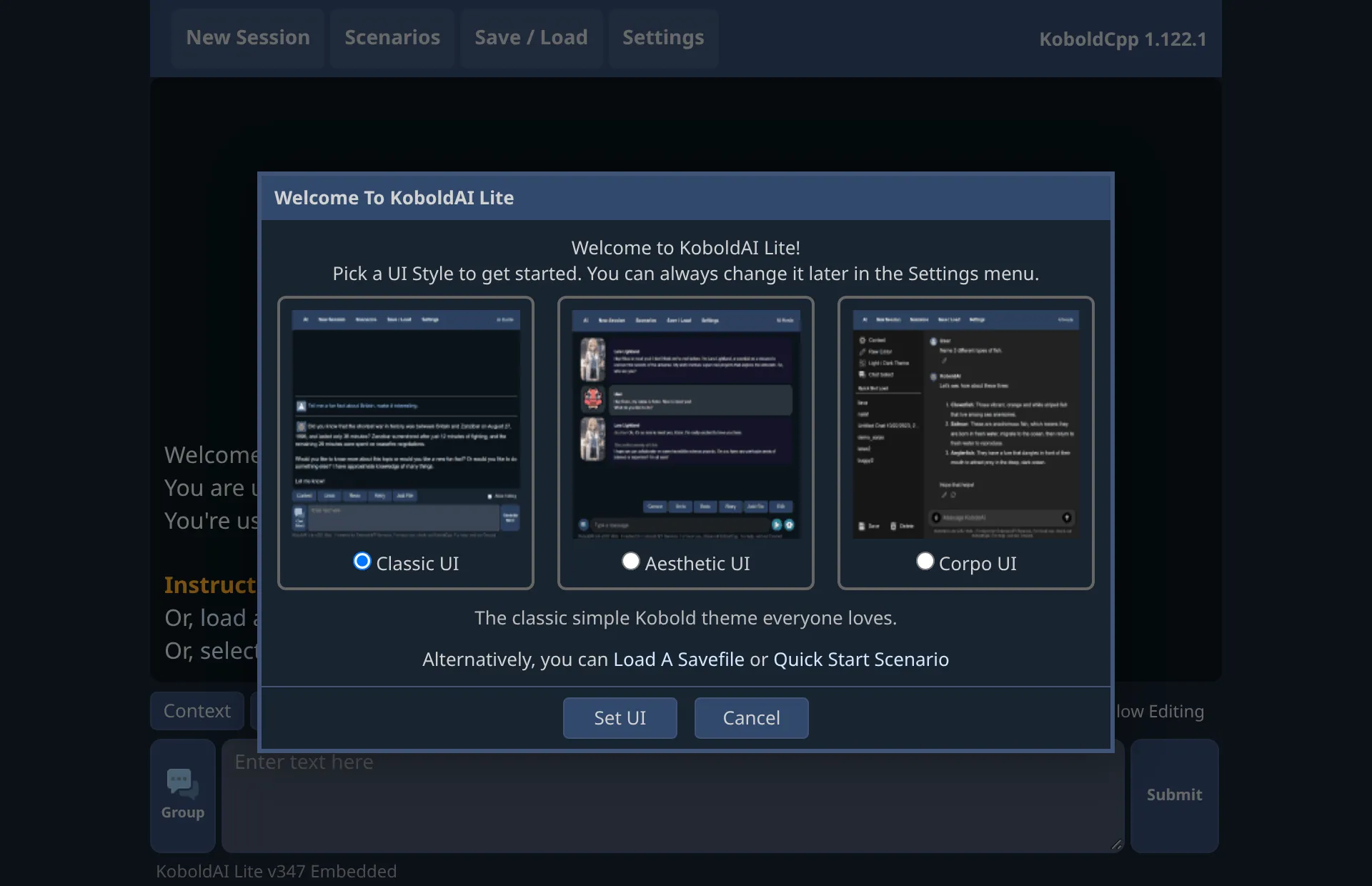
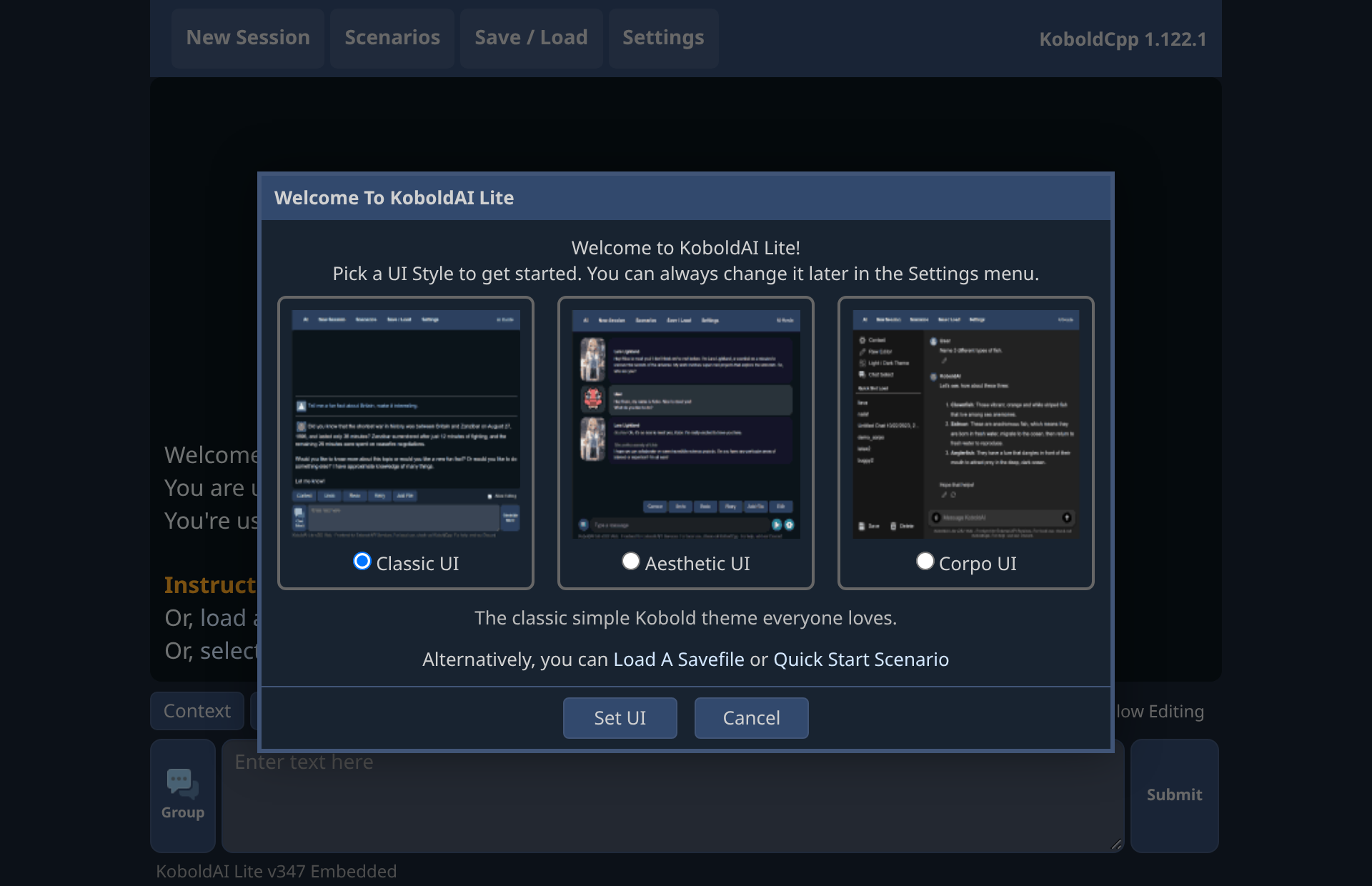
Choose a look and click Set UI. Corpo UI looks like a typical chat app. You can change it later in Settings.
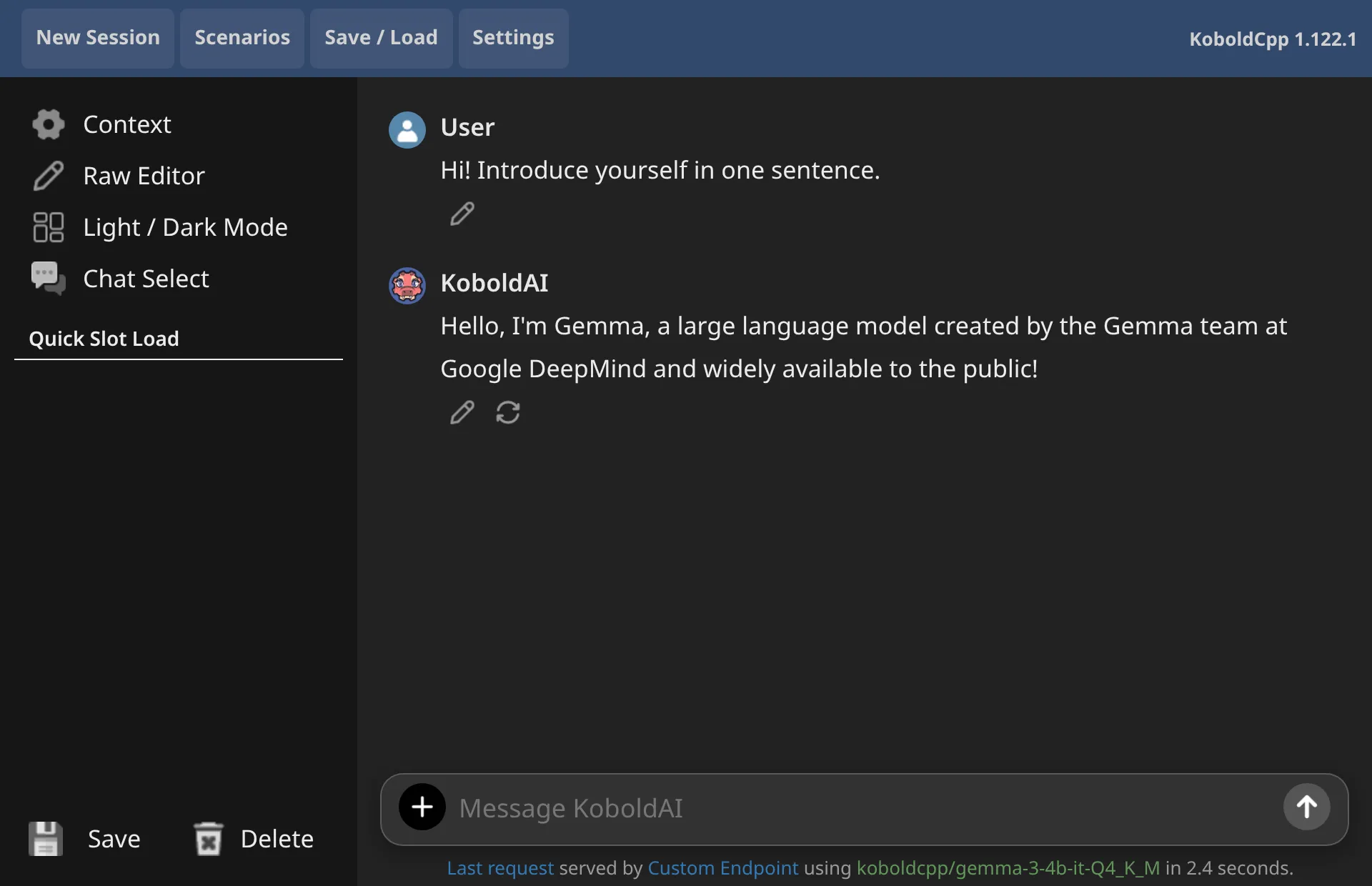
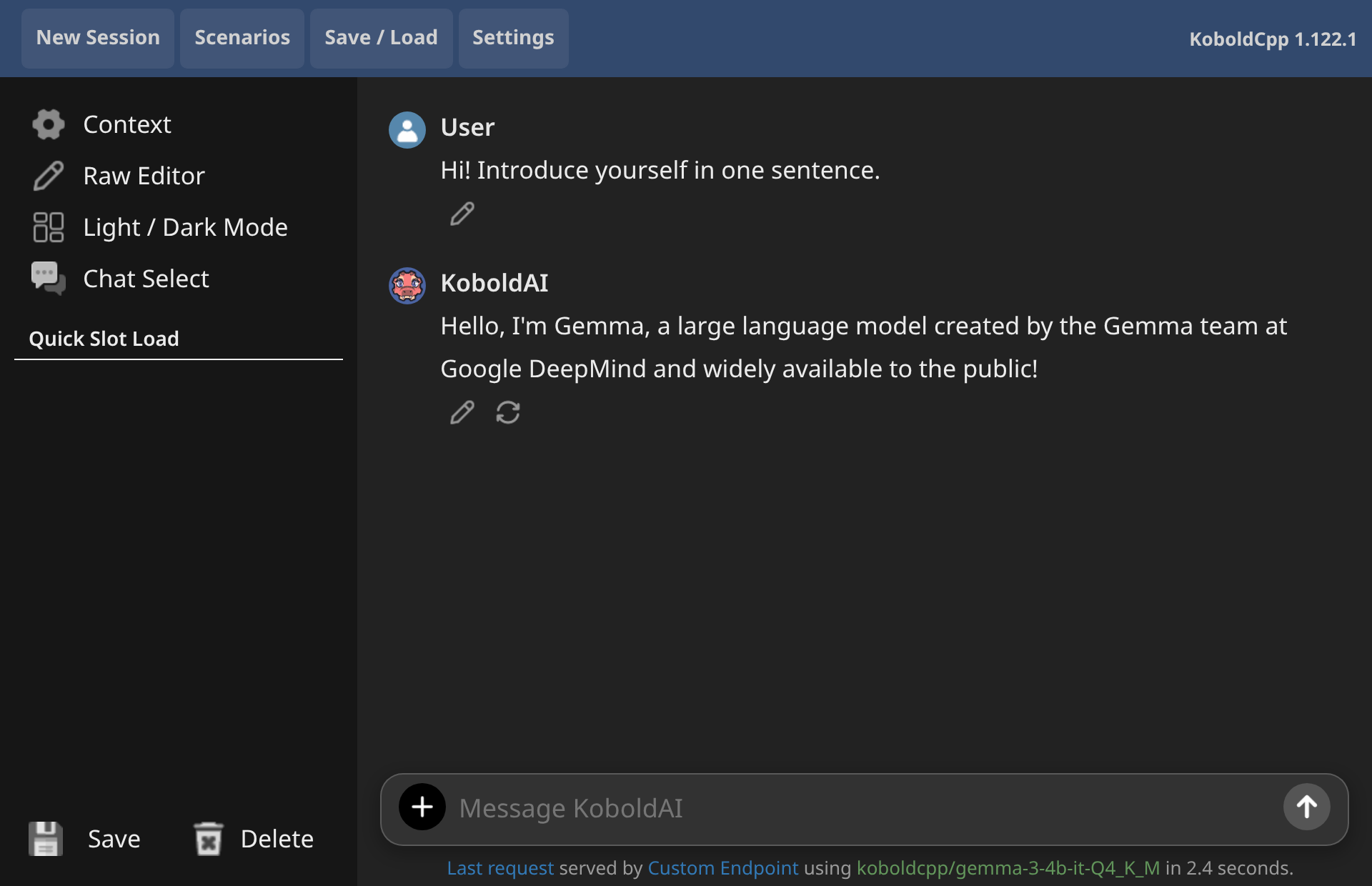
Type a message and click the arrow button to send it (in Classic UI: Submit).
Here are all the WebUIs bundled with KoboldCpp for various tasks (assuming port 5001) http://localhost:5001 - KoboldAI Lite WebUI: Versatile multi-purpose WebUI for chatting/roleplay and basic image generation. http://localhost:5001/lcpp - llama.cpp WebUI: Ported from llama.cpp and mimics ChatGPT. Use if you prefer a more "Assistant" feel. http://localhost:5001/sdui - Stable-UI: A dedicated image generation WebUI. Use this if you are generating or editing images or videos. http://localhost:5001/musicui - MusicUI: A dedicate music generation WebUI. Use this to generate music, you can also use this to generate speech with TTS models.
That's it: everything runs on your computer. To stop KoboldCpp, close its console window.
Next time
Section titled “Next time”In the launcher, Save Config saves your settings to a .kcpps file. Next time, click Load Config, pick that file and click Launch.